Thursday, January 19, 2012

The Basics of CSS3


RGBA

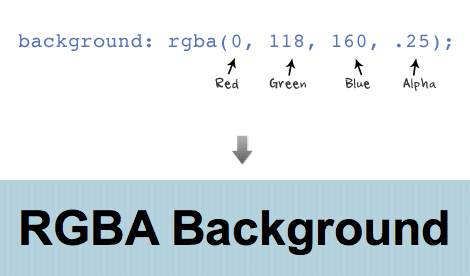
The first three values are RGB color values and the last value is the level of the transparency (0 = transparent and 1 = opaque).
RGBA
RBGA can be applied to any properties associated with color such as font color, border color, background color, shadow color, etc.
RGBA 2

Text Shadow

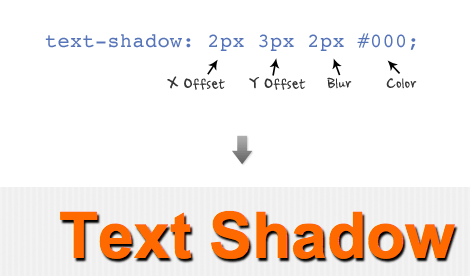
Text shadow is structured in the following order: x-offset, y-offset, blur, and color;

screenshot
Set a negative value for x-offset to shift the shadow to the left. Set a negative value for y-offset to shift the shadow to the top. Don't forget you can use RGBA values for the shadow color.
text shadow 2
You can also specify a list of text-shadow (separated by a comma). The following example uses two text-shadow declarations to make a letter press effect (1px top and 1px bottom).
text-shadow: 0 1px 0 #fff, 0 -1px 0 #000;

text shadow 3

Border Radius

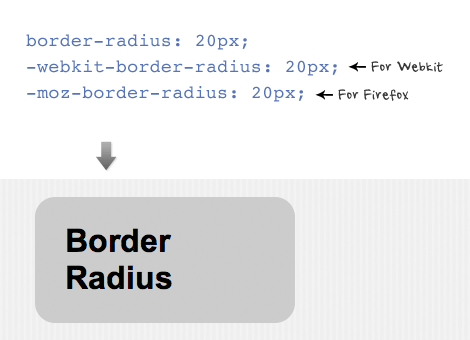
The shorthand for border radius is similar to the padding and margin property (eg. border-radius: 20px). In order for the browsers to render the border radius, add "-webkit-" in font of the property name for webkit browsers and "-moz-" for Firefox.
border radius
You can specify each corner with a different value. Note Firefox and Webkit has different property names for the corners.
border radius

Box Shadow

The structure for box shadow is same as the text-shadow property: x-offset, y-offset, blur, and color.
box shadow
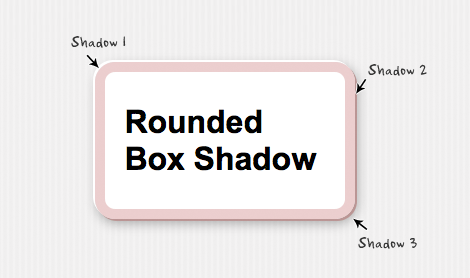
Again, you can apply more than one box shadow. The following example is a list of three box shadow declarations.
-moz-box-shadow:
-2px -2px 0 #fff,
2px 2px 0 #bb9595,
2px 4px 15px rgba(0, 0, 0, .3);
box shadow 2
Source from:http:webdesignerwall.com
CSS3 Dropdown Menu

View Demo CSS3 Dropdown


Preview

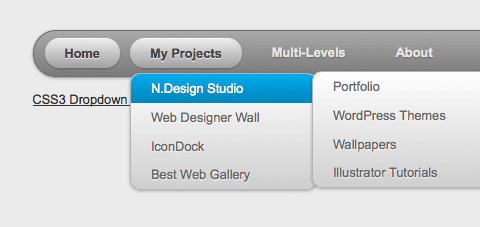
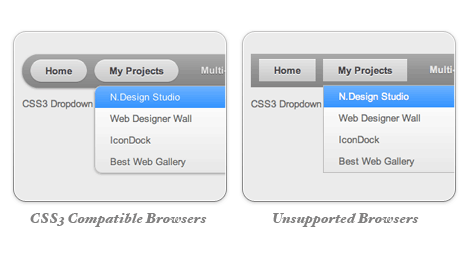
The image below shows how the menu will look if CSS3 is not supported.
menu preview

One Gradient Image is Used

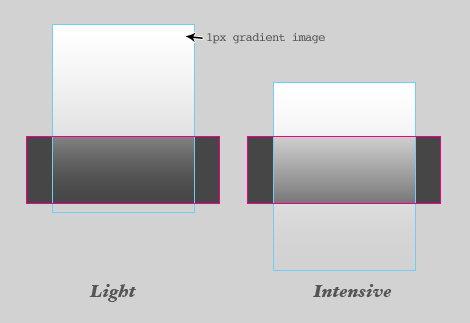
A white-transparent image is used to achieve the gradient effect. Because the new CSS3 gradient feature is not supported by all browsers yet, it is safer to use a gradient background image.
gradient image
The instensitiy of the gradient can be changed by shifting the background image up or down. Also, the gradient color can be easily adjusted by changing the background color.
gradient image

CSS Code

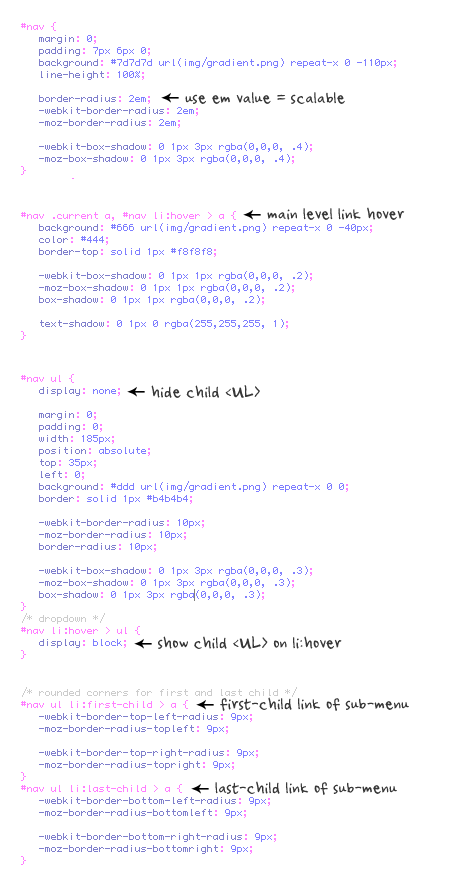
I'm not going to explain the CSS line by line. The images below explain the key points on how this dropdown is coded.
menu css
css code

Update Apr 13 2010: Pure CSS Dropdown (No Image Used)

The following demo used CSS gradient and IE gradient filter instead of the gradient image. It works for Webkit browsers, Firefox 3.6+, and IE.
pure css

MooTools Image MouseOvers

Creating mouseover code can be a real mess but using MooTools I put together a solution that saves me time and keeps my code super clean. There are some practices that I use with my theory. All "mouseover" versions of the image end in "-mo". For example, sugar.jpg is the standard image while sugar-mo.jpg is the mouseover version. Also, I use a CSS class mo to identify which items have mouseovers. I also stick to one file extension and assume that the mouseover image's file extension is the same as the original file's extension.


Code:
                     window.addEvent('domready', function() {
$$('img.mo').each(function(img) {
  var src = img.getProperty('src');
  var extension = src.substring(src.lastIndexOf('.'),src.length)
  img.addEvent('mouseenter', function() { img.setProperty('src',src.replace(extension,'-mo' + extension)); });
  img.addEvent('mouseleave', function() { img.setProperty('src',src); });
})
});


The Usage:

<a href="/"><img src="/graphics/sugar.jpg" alt="Sugar" class="mo" height="50" width="150" /></a>
That's it. Simply add the mo CSS class to the image and save yourself any ugly, bloated "onmouseover" code. Remember not to use the mo CSS class anywhere else!

Monday, November 14, 2011

How to Create Multiple Pages PDF Document Using Adobe Photoshop

Creating PDF is one essential task every computer user has to do atleast once in his life. Computer users have to convert files into pdf documents at daily basis. Office work involves creating and manipulation of documents. There are many ways you can convert a file or many file into PDF document. Many online free services e.g. Zamzar offer this facility for free. But I am going to tell you how to do it offline and with ease.
Convert many image files to pdf easily using adobe photoshop. In older versions of Adobe Photoshop you could save document as pdf but that saved only top active single layer of the photoshop as a pdf document. Now you can take many images and convert them to pdf document. You have got the images – now question is how to convert to pdf. Using adobe photoshop its easy to convert to pdf if source is bundle of images.

create pdf using adobe photoshop from images, files to pdf
Concentrate on the screenshot above.
  • You need images of same resolution [although same resolution is just an option].
  • Open adobe photoshop.
  • Go to File > Automate > PDF presentation.
  • A dialogue will appear.
  • Hit browse button there.
  • Choose multiple image files.
  • Hit save.
There you go. Adobe Photoshop will take all those images and create a single multiple pages PDF file for you.
You can read more adobe how to here. Adobe Photoshop is a magic tool for image and documents treatment. If you are wondering what is PDF then let us explain. PDF is Portable Document Format that is the global standard for capturing and reviewing rich information from almost any application on any computer system and sharing it with virtually anyone, anywhere. Adobe Reader is used to read PDF documents.